Presets
A preset is a complete saved sound. Loading a preset sets every control in Kiwisynth at once. The factory presets are a library of ready-made sounds, and a good way to learn the instrument is to load one and look at how it is built. To build a sound from scratch instead, see the Authoring instruments pages, which walk through making a bass, lead, pad, pluck or set of keys step by step.
Loading presets
The header along the top of the window shows the current preset name. The arrows beside it step to the previous or next preset.
Leaving a preset
Loading another preset, stepping with the arrows, importing one and choosing New all replace the sound you have. None of them asks first. Each is a step you can take back: press Undo in the header, or Ctrl+Z, and the sound returns as it was, edits included. Redo takes you forward again. Undo keeps the last few sounds, not every step of the way back.
Starting from a blank slate
The Menu button in the top left corner has a Preset section with New, Open, Save, Save As, Import preset and Export preset. New clears everything back to a plain starting point. Every control returns to its default, and all modulation, macros and scripting are removed, so you begin from a single unshaped oscillator. This is the patch to reach for when you want to build a sound from nothing rather than adjust an existing one. It replaces whatever you had loaded, and Undo brings that sound back.
The same blank slate is also the first entry, named Init, in the preset selector at the top of the window. Pick it like any other preset when you would rather start clean. The previous and next arrows step through the actual presets and skip past Init.
The browser
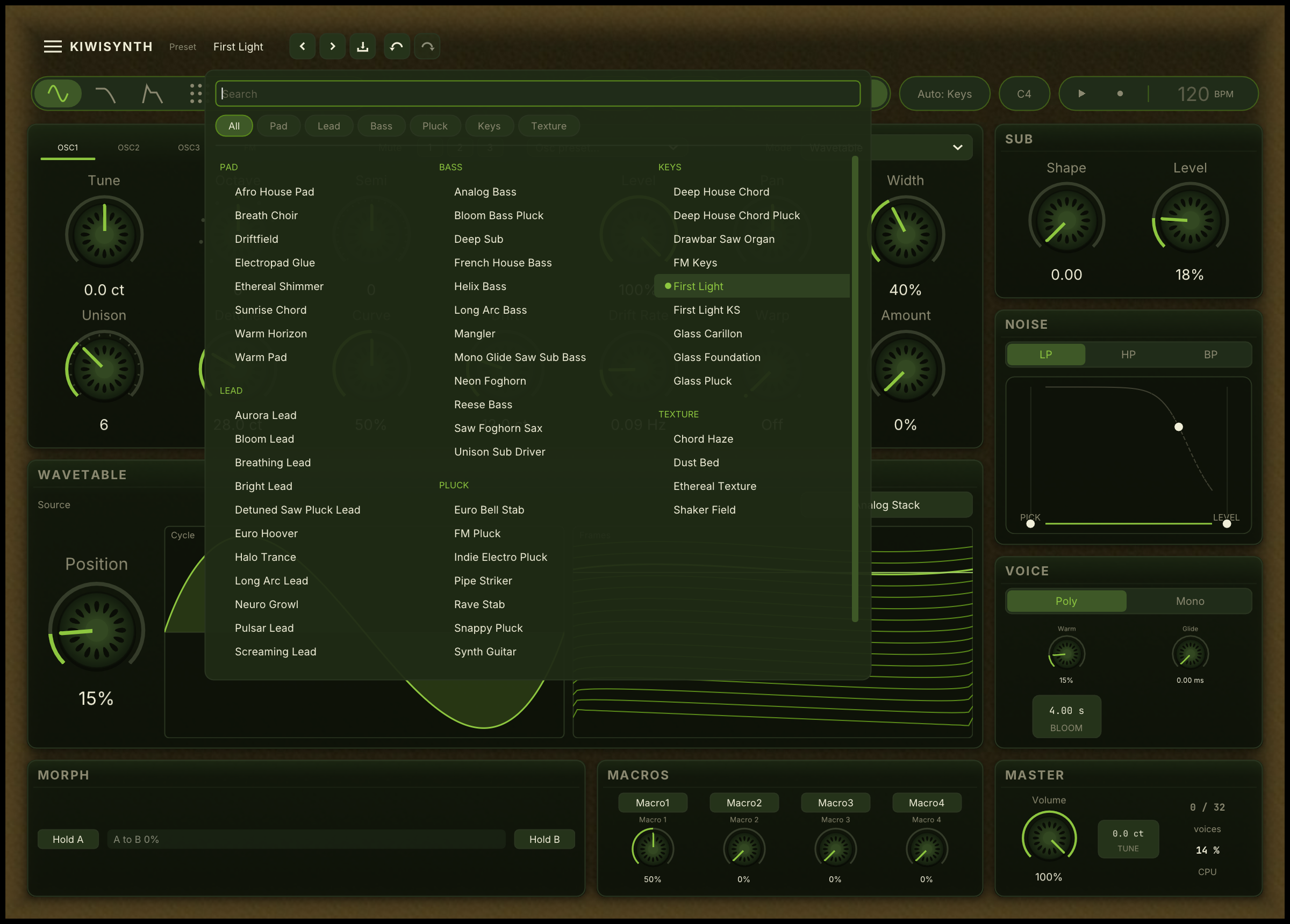
The browser is a fuller way to find a sound. It opens from the preset name at the top of the window and lists the library in columns, grouped by category: bass, FX, keys, lead, pad, pluck and texture. A row of buttons across the top narrows the list to one category, so you audition a few fitting sounds instead of scrolling past all of them.
Saving your own
Save, in the header or the Menu button in the top left corner, stores the current sound as a preset, with a name and a category you choose. Your saved presets sit alongside the factory ones in the browser.
A saved preset also keeps the phrase the audition plays, so the sound is heard the way you last heard it. See the Audition page.
Export preset, in the same menu, writes the preset to a file you can share, and Import preset reads one. An imported preset loads at once but is not kept until you save it.
A preset file is a .json document. A preset that uses imported audio, such as
a wavetable or a granular sample (see Importing your own wavetables on the
Oscillators page), is written as a .kiwi file instead, which carries the audio
inside it so the sound travels with the preset. Presets and bundles made by
earlier versions, .kwpreset and .kwsz, still open through Import preset.
Saving one writes it again in the new format.
Presets you saved with an earlier version still show in the browser. To move
all of them to the new format at once, run kiwisynth-migrate-presets, which
comes in the download next to the plugin. It copies each saved sound into your
preset folder and lists what it did. Your old files stay where they are, so it
is safe to run again. Filter, effect and other section presets are left as
they are and keep showing in their own menus.
Morphing between two presets
The Morph card in the strip along the bottom lets you travel between two sounds. Press Hold A while one sound is loaded and Hold B on another, then move the slider between them. Kiwisynth blends the two, including their movement, so the in-between positions are real sounds in their own right. It is a fast way to find something you would not have built by hand.
Section presets
A preset does not have to be the whole sound. Several sections, such as the oscillators, the filter and the effects, have their own small preset menu. You can borrow just the filter from one sound, or just the modulation, and keep the rest of your patch.
Reshaping a patch
To add movement to a loaded preset rather than build it by hand, right-click any knob and pick from its Add movement list. Kiwisynth chooses settings that suit the control you clicked. The list and what each entry does are described on the Modulation page.
Presets in a CLAP host
A host that supports CLAP's preset browsing lists the factory presets and the presets you have saved in its own browser. Pick one there and it loads into Kiwisynth as if you had chosen it in the header. Kiwisynth's own browser stays available inside the plugin window.