LFOs
An LFO, a low frequency oscillator, is a source of steady, repeating movement. It does not make a sound you hear directly. Instead you point it at a control, and it moves that control up and down for you, again and again. An LFO on pitch is a vibrato. An LFO on volume is a tremolo. An LFO on the filter cutoff is a slow, breathing sweep.
Kiwisynth has four LFOs, so a patch can carry several movements at once. You connect an LFO to a control on the Modulation page, described later in this manual.
Controls
Each of the four LFOs has the same controls.
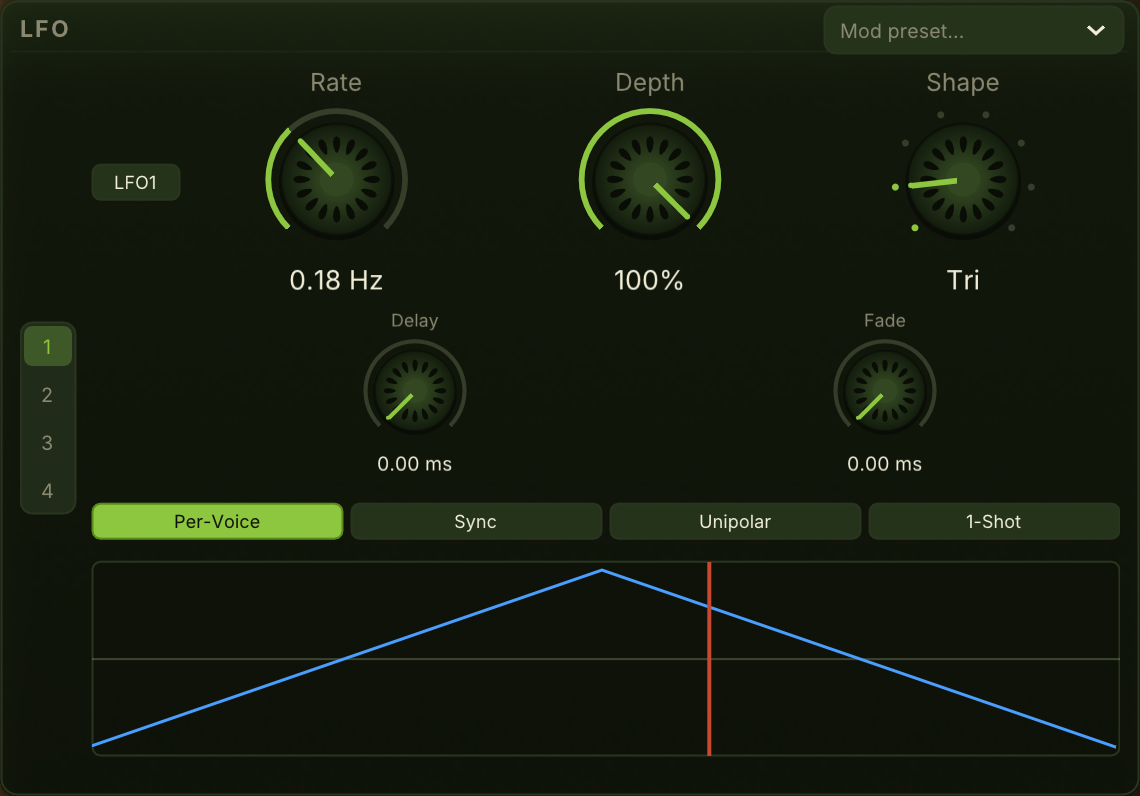
Rate. How fast the LFO repeats. Slow rates give a gentle drift. Fast rates give a quiver or a flutter. Push the rate higher and it blurs into a buzzing tone of its own.
Depth. How far the LFO moves. This is a starting strength for the LFO; each connection you make from it also has its own amount.
Shape. The path the movement follows. A sine rises and falls smoothly. A triangle does the same with straighter sides. The two saw shapes ramp one way then jump back. A square jumps between two values. Sample and hold steps to a new random value each cycle. There is also a custom shape you can draw by hand, and a chaos shape described below.
Chaos is a smooth, wandering movement that never repeats. Where sample and hold jumps to a new random value in steps, chaos drifts between values with no edges and no fixed cycle, so it never lands in the same place twice. The Rate knob sets how quickly it wanders. Point it at pitch for a slow, living detune; at the filter for a sweep that never settles into a pattern; at pan or an effect control for motion that sounds played rather than programmed. It is the shape to reach for when a repeating LFO would give the patch away as a machine.
Mode. Global or Per-Voice. A global LFO runs without stopping, and every note you play joins its movement already in progress. A per-voice LFO starts fresh with each note, so the movement begins at the same point every time. Per-voice is the better choice when you want every note to feel identical.
Delay. Used by per-voice LFOs. It holds the movement back for a moment after the note starts, so the note begins still and the LFO arrives a little later.
Fade In. Used by per-voice LFOs. Instead of starting at full strength, the LFO grows in gradually. A delayed, fading vibrato that arrives after the note has settled sounds like a played instrument rather than a machine.
Delay and Fade In only bring a movement in. For the opposite, a wobble that is widest when the note starts and narrows as it rings, route a modulation envelope to the LFO's Depth knob instead. That is described under "Make a wobble grow or narrow" in modulation, and it needs the LFO in Per-Voice mode for the same reason these two controls do.
Sync. Free or Sync. Free runs the LFO at the Rate knob, in Hz. Sync ties the LFO to your project tempo and the Division stepper takes over: the LFO makes one full cycle per division. Use Sync when you want the movement to land on the beat. Tempo-locked filter sweeps, auto-pan, and the tempo-gated patterns that show up in modern trance and house all need this.
Division. Used when Sync is on. The note value of one cycle: 1/4, 1/8, 1/16, their dotted and triplet variants, 1/32, and the longer 1/2, 1 Bar, and 2 Bars cycles for patterns that span a phrase rather than a beat. When Sync is off this knob is dim. Free mode reads from Rate instead.
In Global + Sync mode the LFO also lines up with the host's bar position, so two LFOs on the same division across two instances of the plugin stay in phase. In Per-Voice + Sync mode the rate is still tempo-locked, but the phase restarts on each note so the first cycle begins at the moment you hit the key.
Start phase. The narrow strip along the bottom of the shape display carries a small triangle. Drag it to choose where in the cycle the LFO begins. A line through the shape shows the point you have picked.
At the far left, the default, the LFO starts where its shape starts. Move it and a vibrato can begin at the top of its swing instead of at the bottom, or two LFOs on the same division can be offset against each other so they push and pull in turn rather than together. With Sync on, the offset applies against the bar as well, which is how you get a gate that lands a sixteenth late.
Bi / Uni. Which way the movement pushes. Bi is the normal setting: the LFO swings both above and below whatever the target knob is set to, so the knob position is the centre of the sweep.
Uni makes it push one way only, and the knob position becomes the bottom of the sweep rather than its middle. Use it when a control should rise from where you set it and come back, never dip below. Two things follow from it. The sweep is half as wide for the same Depth, so expect to turn Depth up. And a target already at its maximum has nowhere to go, so invert the routing depth to make it push downward from the top instead.
Cycle / 1-Shot. Whether the LFO repeats. Cycle is the normal setting and runs forever.
1-Shot runs a single cycle when the note starts and then holds its last value. That turns an LFO into a one-shot contour, so a drawn shape becomes a riser, a swell or a one-time filter gesture. It is at its best with Sync on: a shape set to 1 Bar becomes a riser that takes exactly one bar however the tempo changes.
1-Shot needs a note to start from, so it applies to per-voice LFOs. In Global mode the chip is greyed and the LFO keeps cycling.
Drawing a shape
When an LFO is set to its custom shape, the shape display becomes a surface you can draw on. Draw the path you want and the LFO follows it. This is for movement that none of the fixed shapes would give.
Above the drawing surface, a small row of buttons appears: Free, 8, 16, 32. Free is freehand: drag to paint the curve sample by sample. The three numbers switch to a step grid with that many steps. In step mode the click latches a value and dragging fills neighbouring steps at the same height. The bipolar canvas runs from plus one at the top to minus one at the bottom; when this LFO is routed to amp volume, the top leaves the note open and the bottom closes the gate.
Trance gate / stutter
The combination of custom shape, step grid, Sync on, and a bar-length division turns an LFO into a trance gate.
Pick a long enough cycle for the pattern to breathe. With Division at 1 Bar the 16 steps of a Step-16 grid line up with sixteenth notes; at 2 Bars the same grid is in thirty-second notes per step. Draw the closed steps near the top of the canvas and the open steps near the bottom, or the other way round. It does not matter as long as the depth at the destination is signed to match.
On the Modulation page, route this LFO to Amp Level with the depth turned fully negative. The amp opens on the high steps and closes on the low ones. For the classic decel, where the gate starts fast and stretches out as the note tails, draw narrow closed-open pairs at the start of the pattern and wider open runs at the end. The shape itself does the deceleration; there is no decel knob.
Use Per-Voice + Sync if you want each note's gate to land on the host bar grid but start at step 0 on key-down. Use Global + Sync if you want every voice in a held chord to share one continuous gate.