Getting started
Kiwibass is a monophonic bass instrument. One voice, a clean mono sine for the sub, and everything else happening above it.
Two ways to run it
Kiwibass comes as two downloads.
The standalone is the editor, on Windows. It is where sounds are designed: every canvas in this manual lives there. It plays a fixed demo line or a pattern you write, and renders what you hear. It does not take a MIDI keyboard.
The plugin is a CLAP and a VST3 instrument, for Windows and Linux. It has no editor of its own: your host shows its parameters as a list of sliders. In a CLAP host, the preset browser lists the factory patches and the ones you saved in the standalone, drawings included; the VST3 lists none. See The plugin.
There is no undo yet, in either.
The window
Top to bottom, the standalone shows:
- The header. The kiwibass menu, the current patch with its browser, the four tabs, the choice of what plays, and the transport. See Patch, Transport and The kiwibass menu.
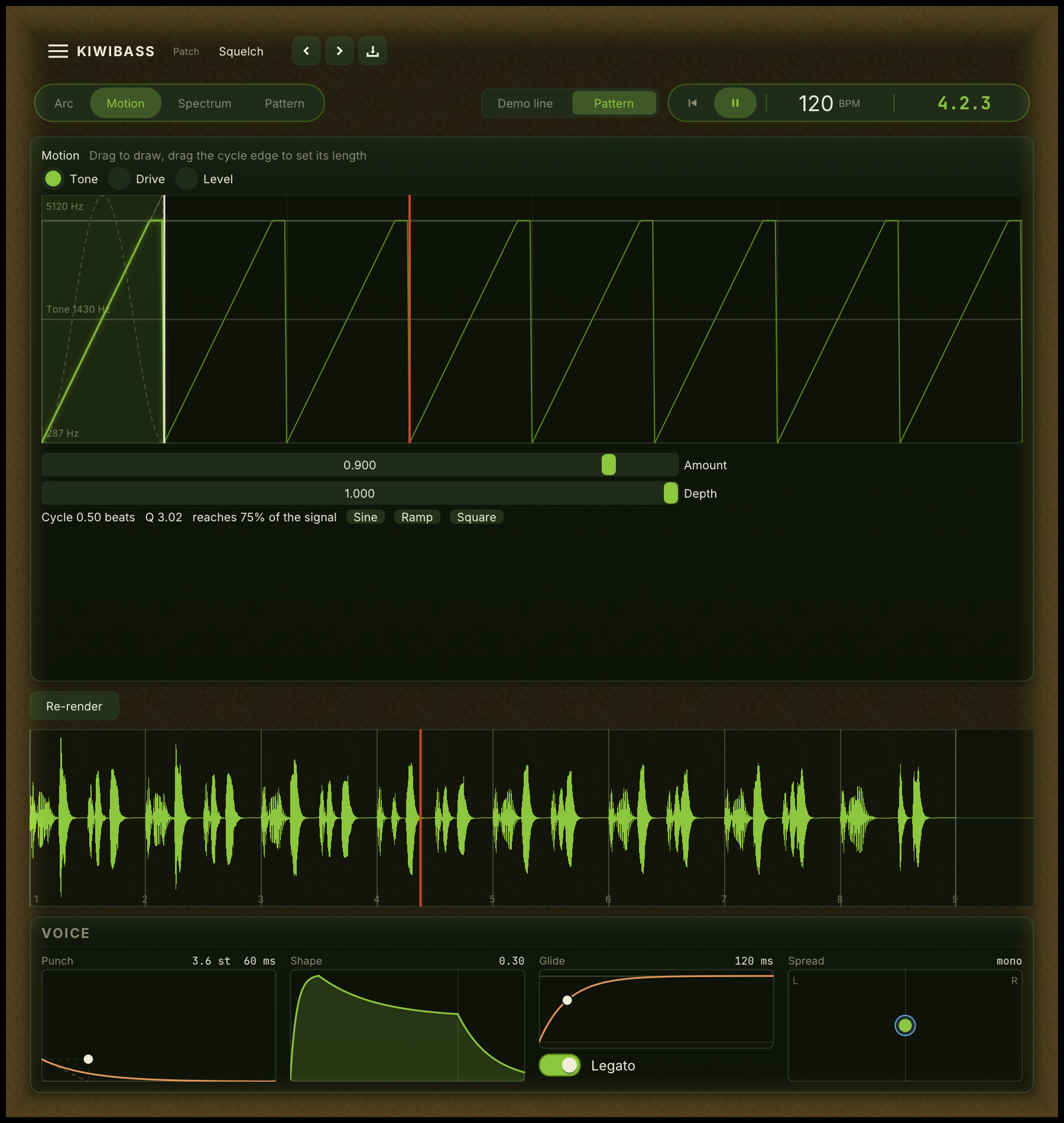
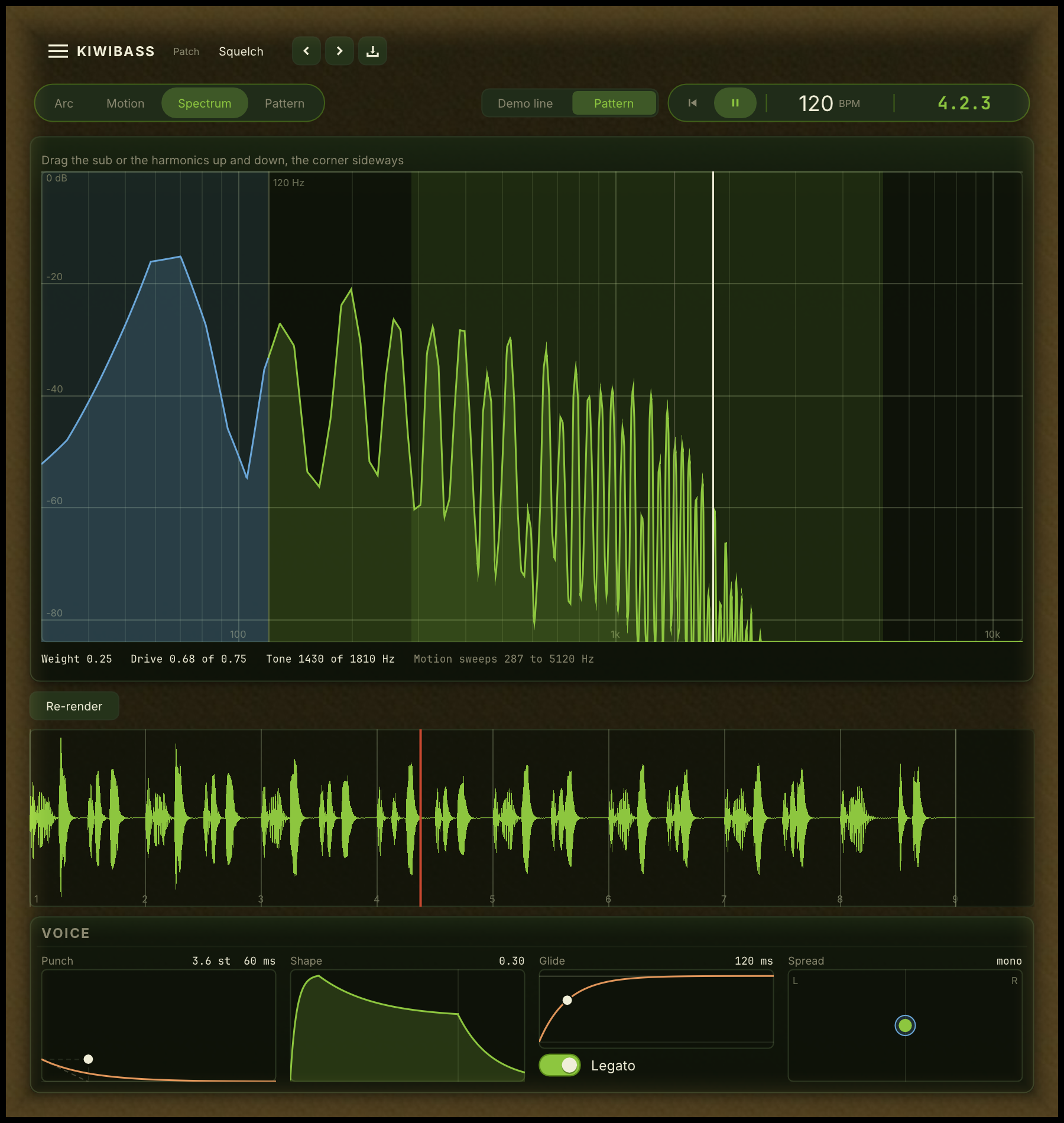
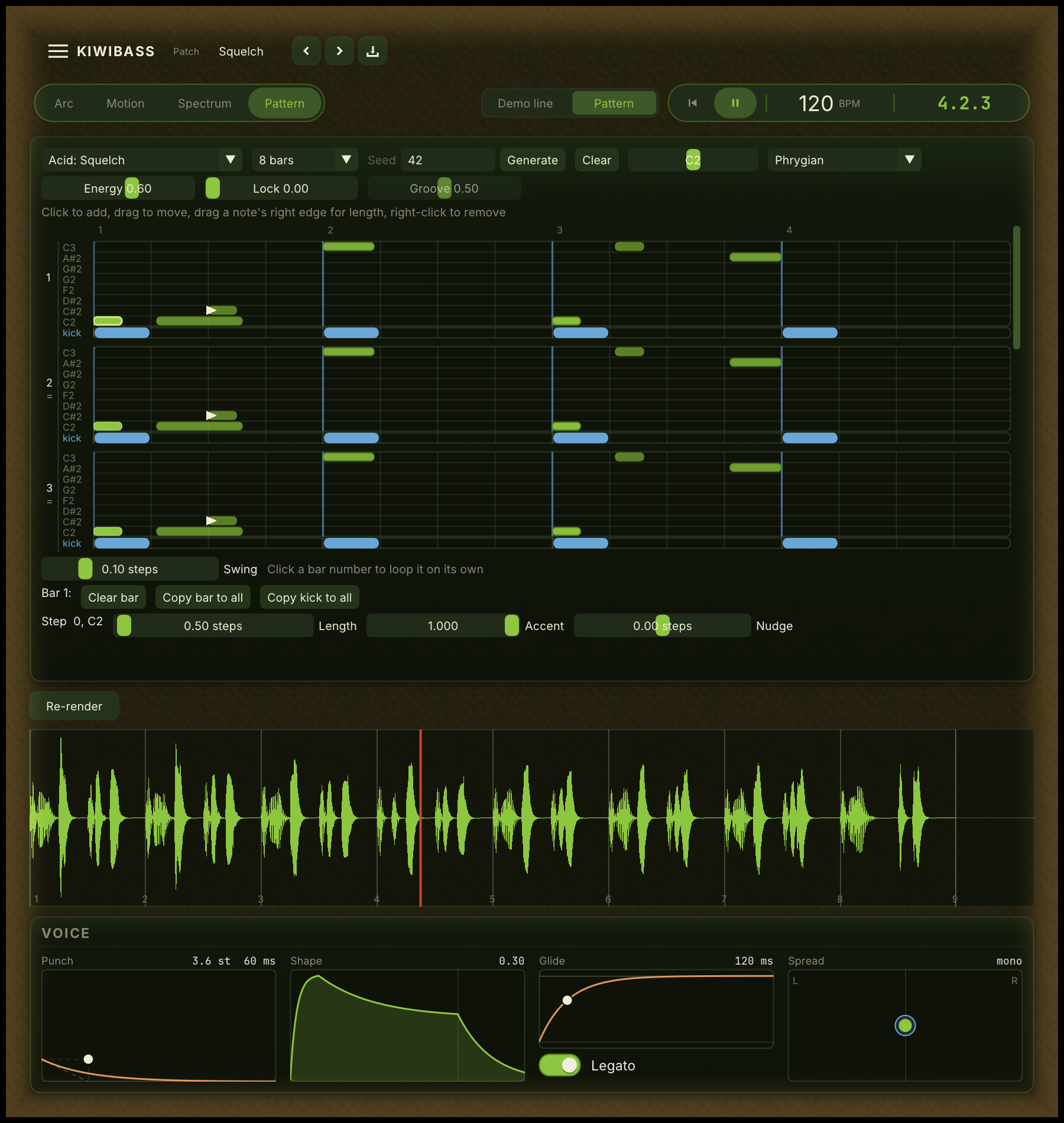
- The canvas of the open tab. Arc draws the phrase, Motion the cycle inside a beat, Spectrum the sound against frequency, and Pattern the bassline.
- Render and the waveform. What the current sound and notes render to. See Waveform.
- The Voice panel. How each note starts, holds, slides and spreads. See Voice.
The Voice panel and the waveform stay on screen whichever tab is open, because they are what every canvas is judged against.
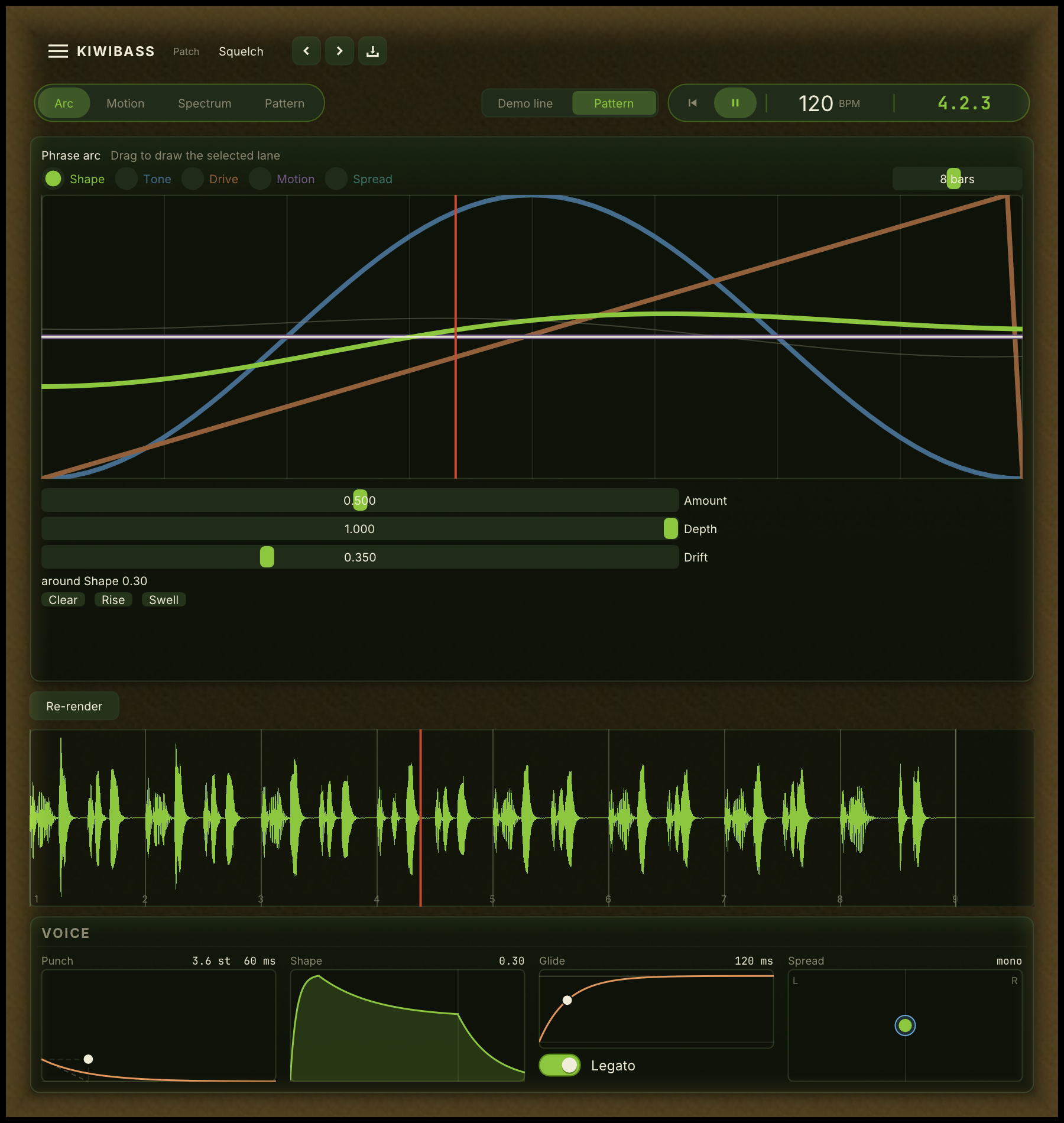
The same window with the other three tabs open:
A first sound
- Press play in the transport. The demo line loops.
- Step through the factory patches with the arrows beside the patch name.
- Open the Spectrum tab and drag the harmonics up: more Drive.
- Open the Arc tab, pick the Tone lane and press Swell. The sound now opens and closes over eight bars.
- Save it with the save button beside the patch name. It is now in the browser of every Kiwibass standalone you open, and in the preset browser of a host that loads the CLAP.
How the voice responds to what you play is in Playing it.